How to: Setup a New Channel
By default, your Grow account will have a channel called Live Website connected. If you wish to publish to different channels, or to use a Placement Manager to publish multiple Experiences, you will need to set these up separately.
This article explains how to connect a new channel to your Grow account.
This feature is available to Admins only.
Connecting a channel
If you wish to publish your Experiences to multiple channels, you will need to connect additional channels to your account.
-
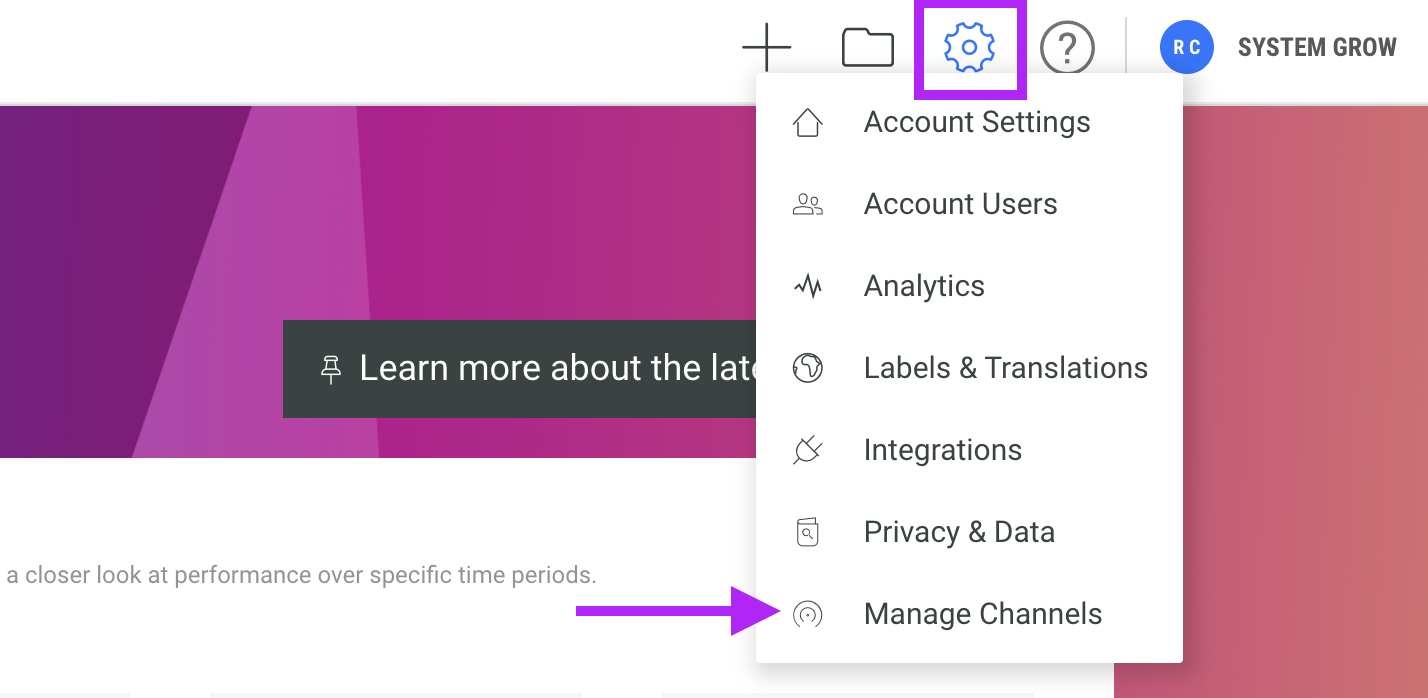
Hover the cog icon in the top navigation bar and click Manage Channels from the dropdown menu
-
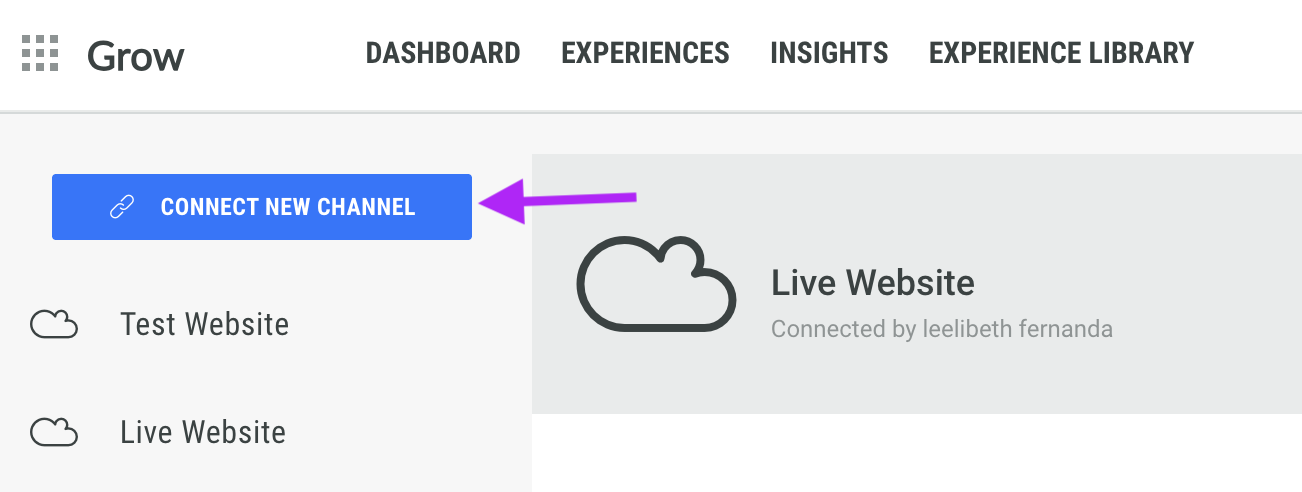
Click Connect New Channel on the left hand side
-
Click Web
-
Name your channel and click Next
-
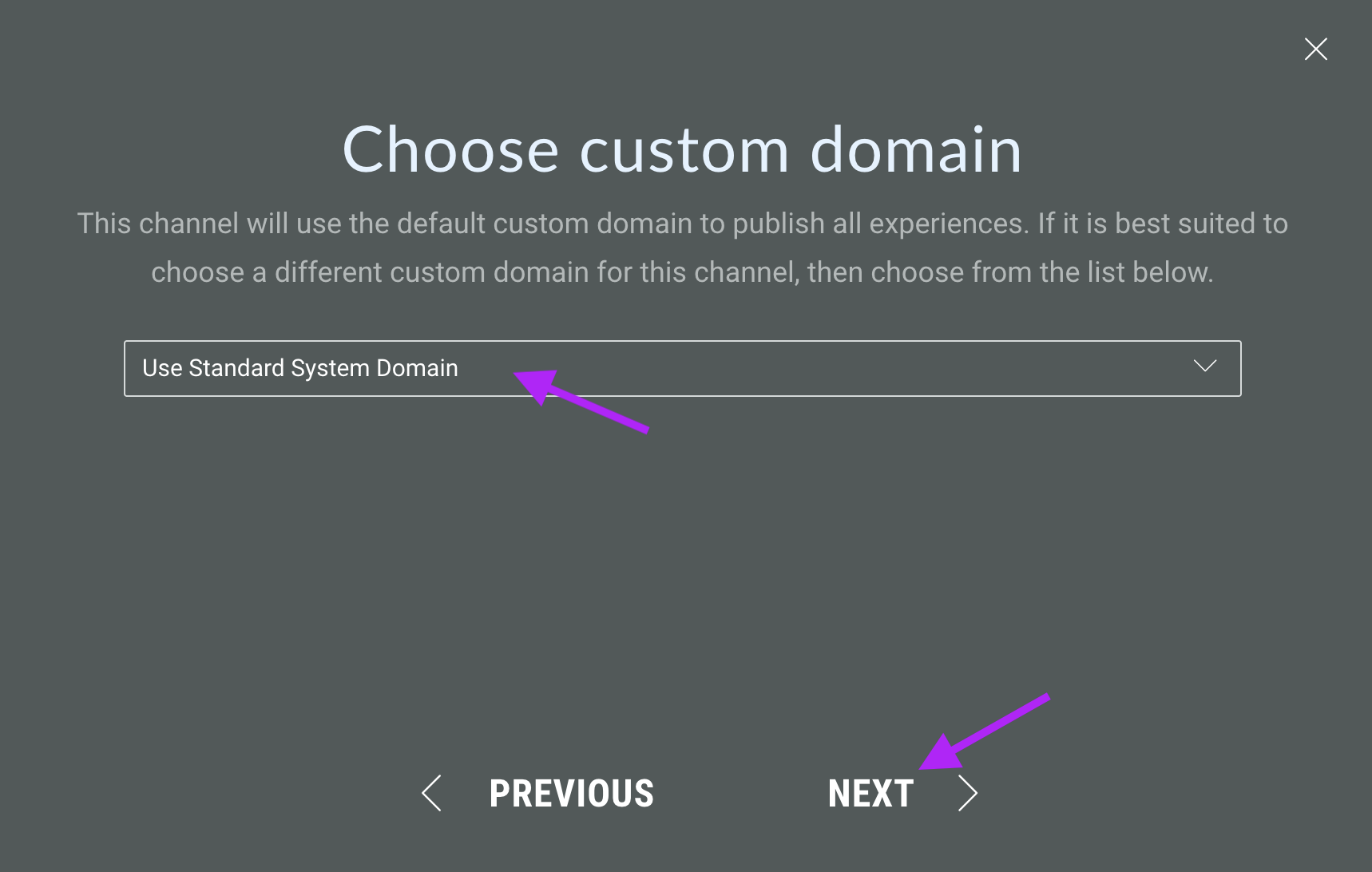
Select your custom domain from the options available in the dropdown and click Next.
Note: This step will only be available if you have a custom domain set up within your Grow account. See our guides on setting up custom domains and how to publish using a custom domain.
-
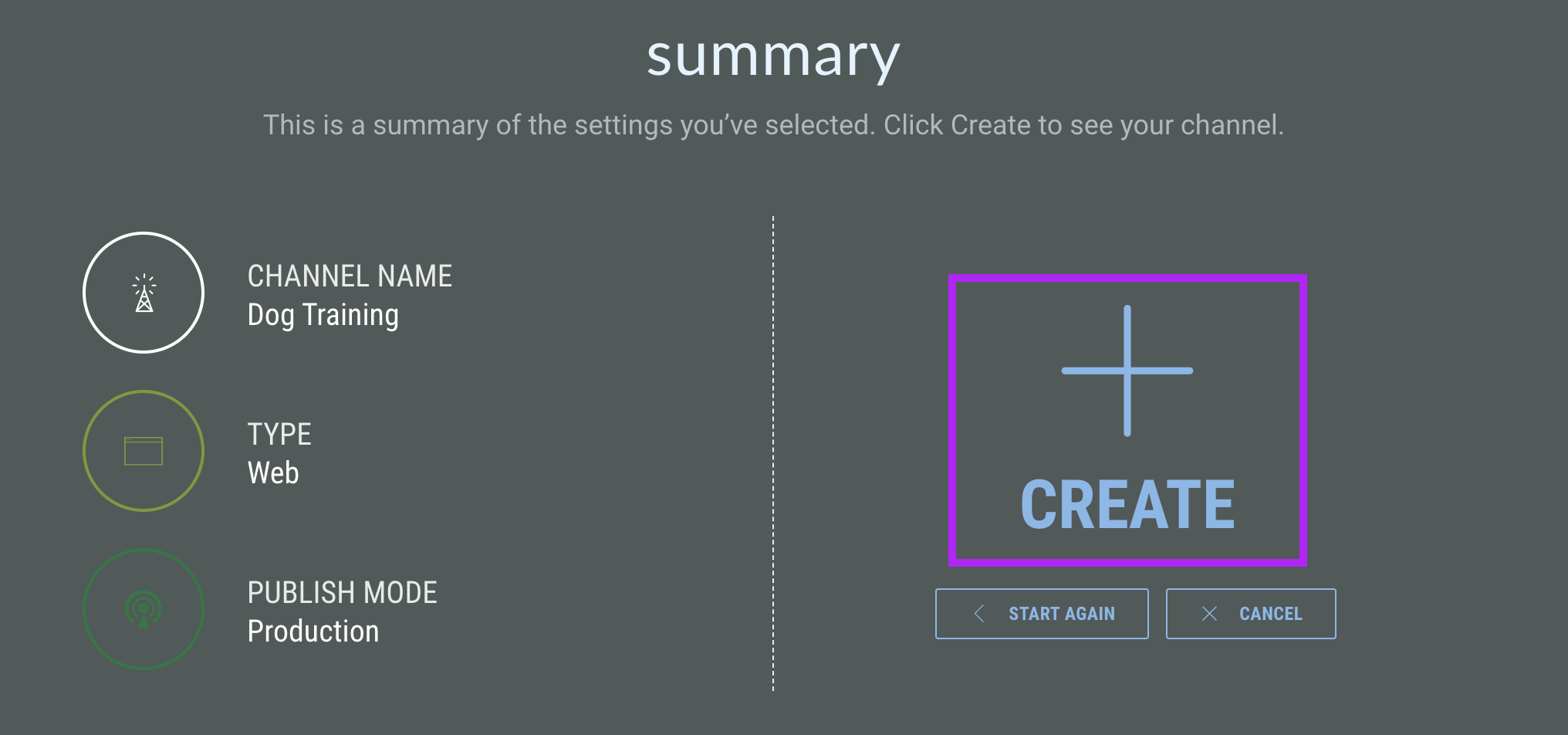
Review your selections on the summary page and click Create
-
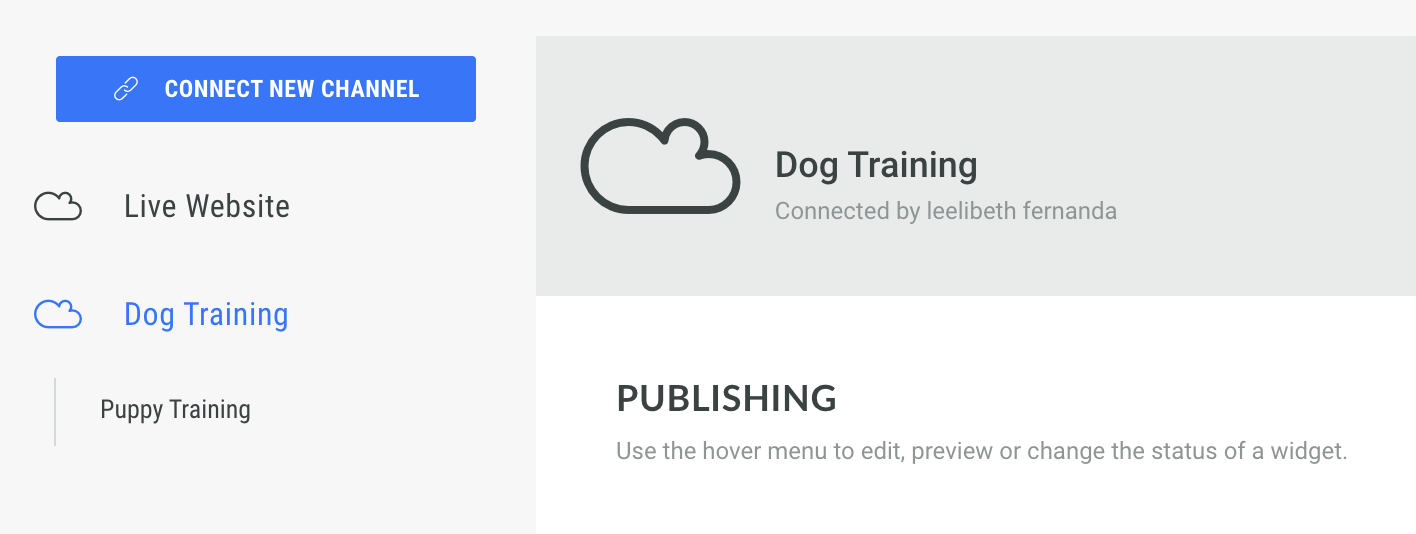
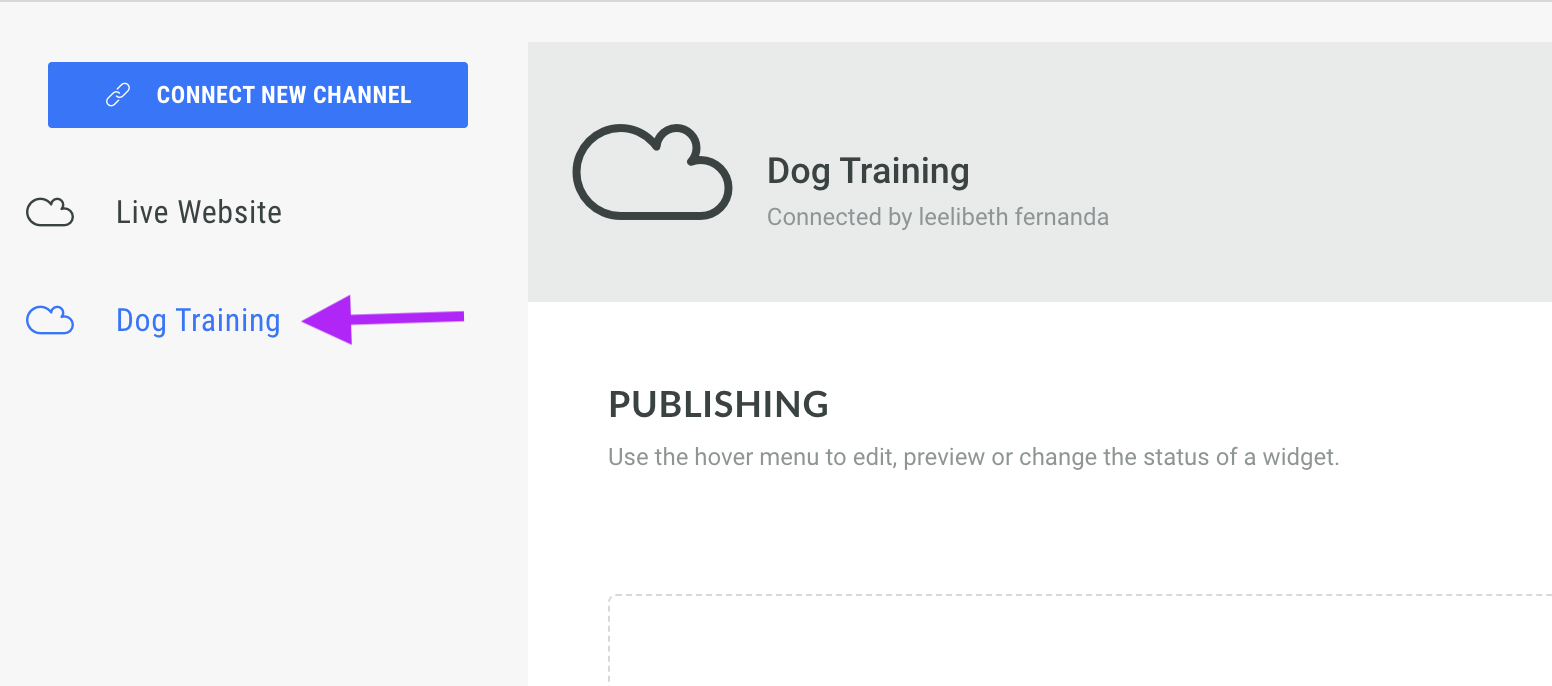
You'll see your new channel in the panel on the left hand side
-
You can now create a Placement Manager for your channel to more easily manage the Experiences and how they are shown on your website.
Manage channel settings
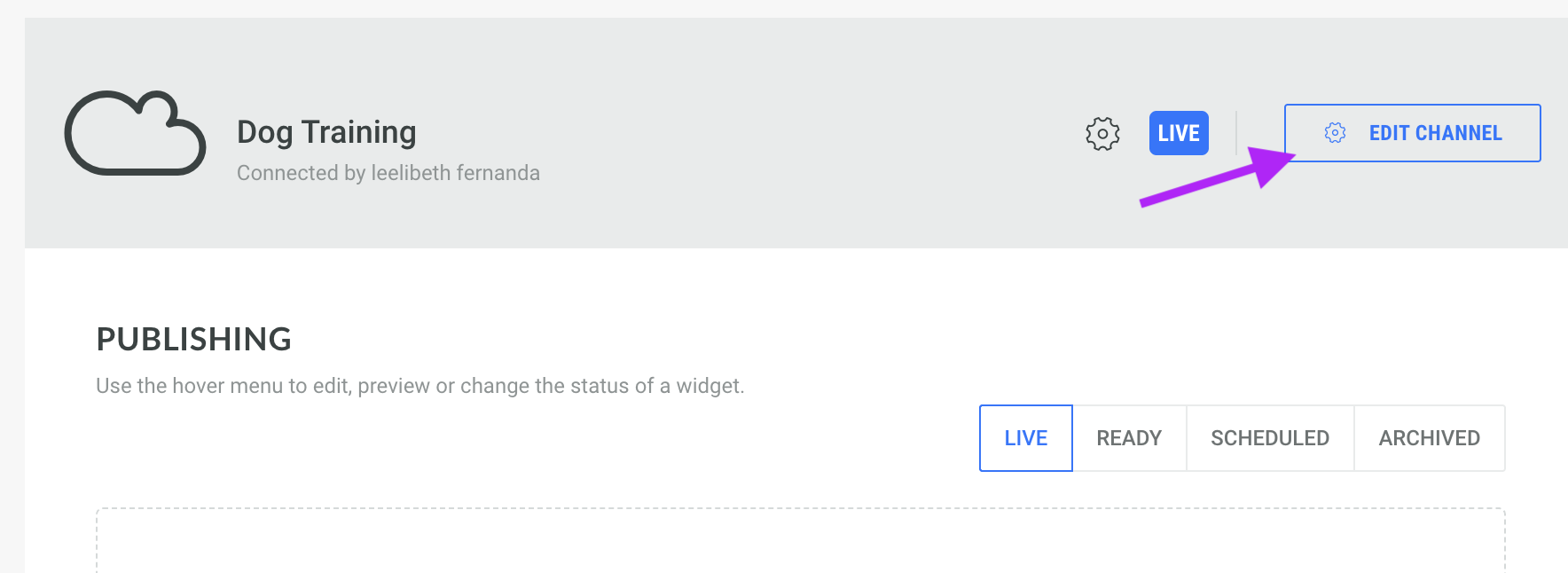
Click Edit Channel to manage the settings of each channel
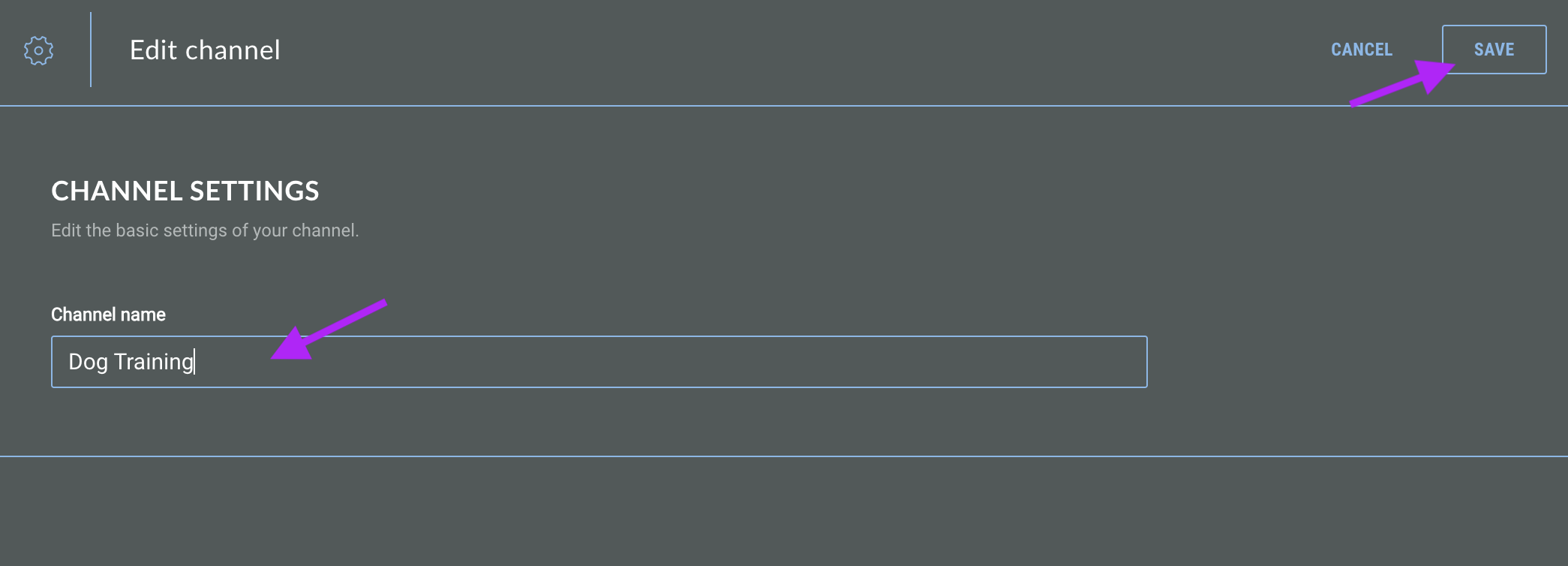
Here, you can rename your Channel. Once you have finished editing, click Save.
Connecting the channel with a custom domain
Sending a consistent message is important for establishing familiarity with your audience and consistent branding across all digital touch points helps you build brand equity over time.
Follow these guides on setting up and using custom domains within your Grow account:
Create a Placement Manager
The Grow Placement Manager allows you to group together Experiences that you want to load on your website. Grow then provides an embed code that you can add to your Google Tag Manager account as a Custom HTML tag or directly to your website code.
-
Hover over the cog icon in the top banner. Select Manage Channels from the drop down menu.
-
Select the channel that you want to use, or create a new one.
-
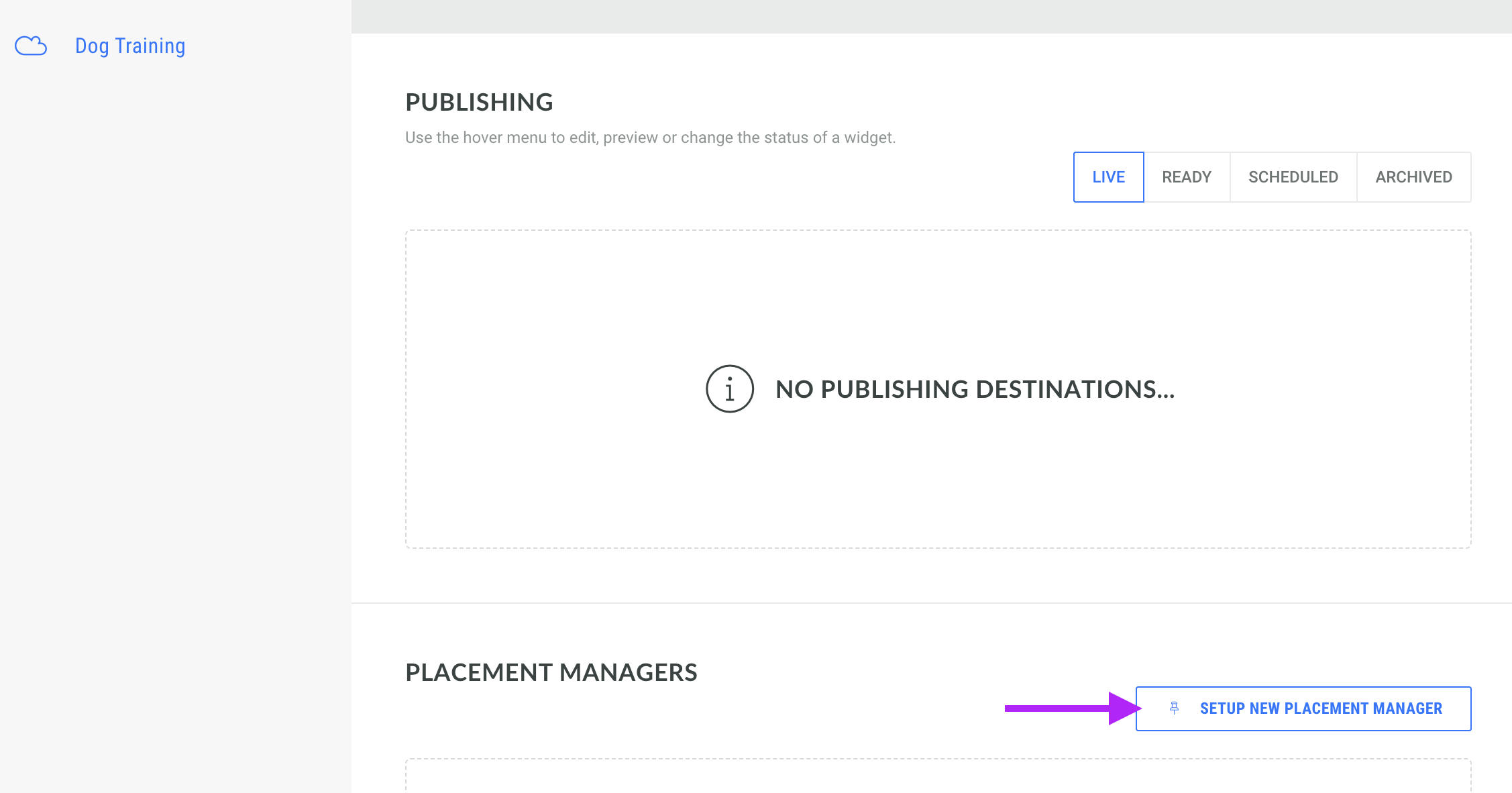
Click Setup New Placement Manager
-
Enter a name for the Publishing Manager and click Next.
-
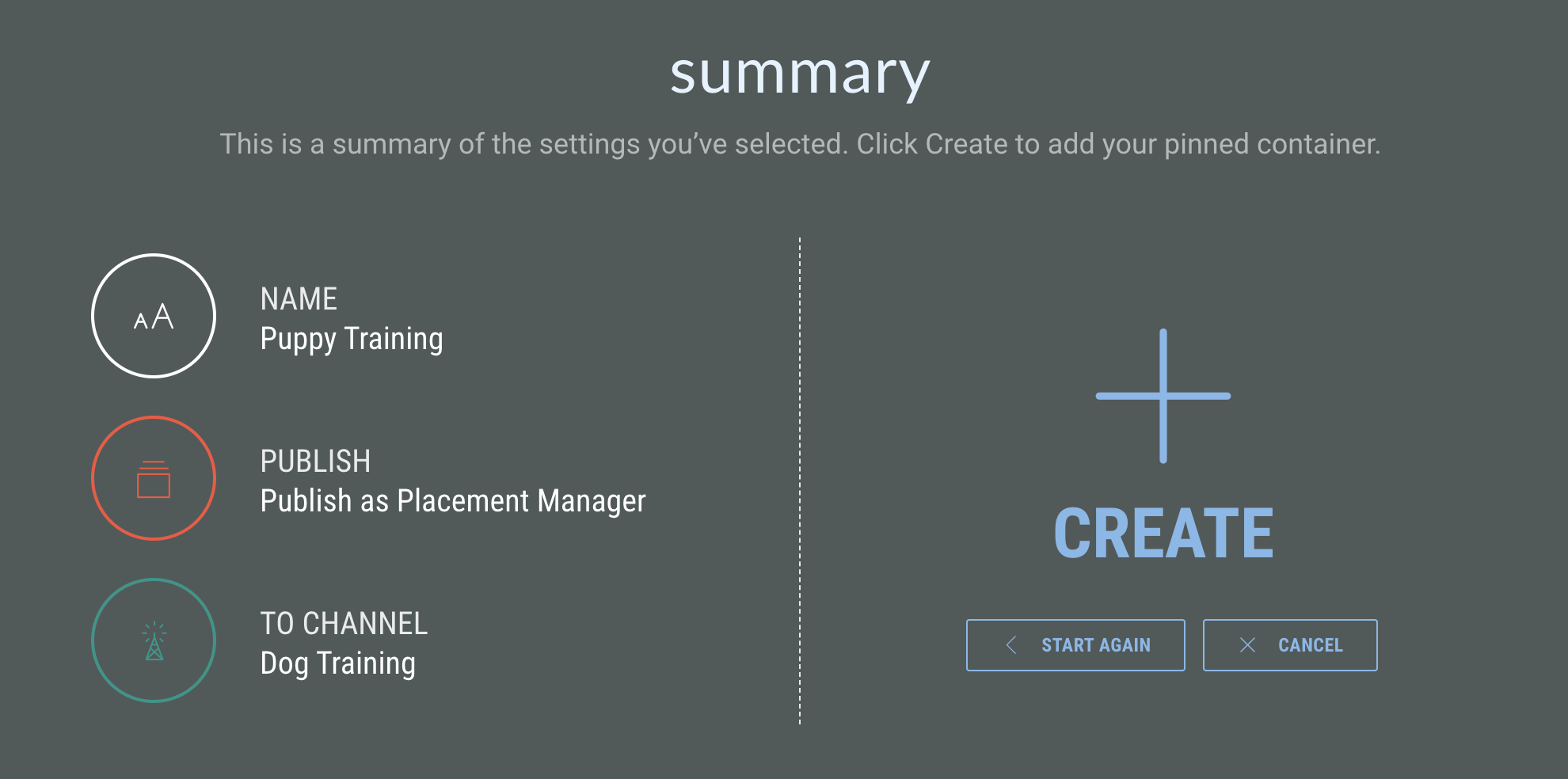
On the Summary step, confirm that the publishing type is Publish as Publishing Manager and that the correct channel is selected. Click Create.
-
The new Placement Manager is displayed beneath the associated channel in the panel on the left hand side.